What is Google Site Kit? Do You Really Need It on WordPress?
Quick Answer: Is Google Site Kit WordPress Mandatory?
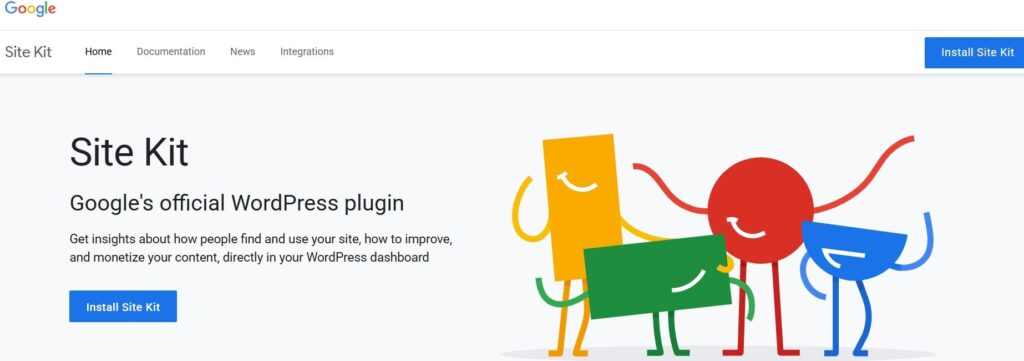
If you recently finished setting up Google Search Console and Google Analytics 4, you might wonder if using google site kit wordpress is necessary. Developed directly by Google, this official plugin promises to simplify data tracking by unifying your webmaster analytics into one central administration panel. However, the short answer is: No, installing Google Site Kit on WordPress is not mandatory. Your website tracking functions perfectly fine without it.
While many beginner tutorials recommend this plugin, experienced site owners and speed enthusiasts often skip it. Connecting Google services through lightweight header scripts keeps your backend fast and free from database overhead. In this guide, we analyze what the plugin offers, weigh its pros and cons, explain why many creators skip it, and provide setup instructions for those who prefer convenience over maximum speed optimization.
What Does Google Site Kit WordPress Actually Do?
At its core, google site kit wordpress acts as a visual bridge between your database and Google’s suite of webmaster utilities. Rather than operating as an independent analytics engine, it fetches metric snapshots from external Google APIs and displays summarized reporting widgets directly on your dashboard. It unifies up to five distinct Google products into one interface.
| Google Service | Primary Dashboard Function | Key Metrics Displayed |
|---|---|---|
| Google Search Console | Monitors organic search engine discovery | Total impressions, clicks, average CTR, top queries |
| Google Analytics 4 (GA4) | Tracks visitor behavior and demographics | Active users, engagement rate, average session duration |
| PageSpeed Insights | Evaluates front-end site performance | Core Web Vitals scores, LCP, CLS, INP diagnostics |
| Google AdSense | Tracks publisher advertising performance | Estimated earnings, page RPM, ad impressions |
| Google Tag Manager | Manages custom tracking events | Tag firing triggers and custom event deployment |
For creators who dislike logging into multiple separate web platforms, it offers a unified view. You can review yesterday’s organic visitor counts, top landing pages, and speed scores without leaving your WordPress dashboard.
7 Pros and Cons of Google Site Kit WordPress
To help you evaluate whether using google site kit wordpress fits your long-term publishing strategy, let’s break down its key advantages and technical drawbacks across 7 critical areas:
1. Operational Convenience vs. Admin Speed
The Pro: You eliminate the hassle of navigating between Search Console, GA4, and PageSpeed Insights in separate browser windows.
The Con: Fetching external API data every time you open your admin panel can cause background latency, making admin page renders noticeably slower.
2. Automatic Tagging vs. Script Control
The Pro: The plugin places your GA4 tracking tag (`gtag.js`) and Search Console verification tags automatically without requiring manual code edits.
The Con: Automatic placement gives you less control over script execution. Advanced webmasters who prefer delay-loading non-essential scripts may find this automated approach restrictive.
3. High-Level Summaries vs. Deep Analytics
The Pro: Beginners get a clean visual summary of daily traffic without feeling overwhelmed by complex reports.
The Con: The embedded dashboard displays surface-level data. For custom conversion funnels, event parameters, or deep keyword filtering, you must open the official standalone platforms anyway.
4. Easy Authentication vs. API Connection Errors
The Pro: OAuth authentication takes just a few clicks through your primary Google account.
The Con: OAuth tokens can occasionally expire or disconnect following major core updates or security plugin resets, leading to REST API communication errors.
5. All-in-One Pairing vs. Plugin Bloat
The Pro: Combining Search Console and AdSense in one setup streamlines monetization monitoring after approval.
The Con: Every active plugin added to your site increases memory usage, database queries, and potential security risks. Maintaining a minimal plugin footprint is crucial for site speed.
6. Instant Setup vs. Risk of Double-Tagging
The Pro: Instant configuration ensures your site collects visitor data right away.
The Con: If you already inserted tracking scripts via your SEO plugin (like Rank Math), enabling tag placement inside Site Kit causes double-counting, corrupting your metrics.
7. Official Support vs. No Third-Party Integration
The Pro: Official Google ownership guarantees continuous updates, security compliance, and long-term support.
The Con: The plugin exclusively supports Google services. It cannot integrate metrics from Bing, privacy-focused analytics tools, or third-party ad networks.
LIVE PROOF: Why I Skipped Google Site Kit WordPress
When I launched my blog, my instinct was to install every official plugin available. I set up google site kit wordpress and enjoyed seeing graph widgets inside my admin menu. However, as my content library grew, subtle operational drawbacks forced me to reconsider.
Every time I opened my administrative dashboard to write a draft, there was a slight delay as the plugin fetched live reporting data from Google’s servers. Furthermore, whenever I wanted to analyze organic search performance in detail—such as checking keyword rankings—the simplified widgets lacked granular filtering tools. I found myself opening the standalone Search Console and GA4 web apps anyway.
I realized keeping the plugin active meant running extra PHP processes for a dashboard summary I rarely used. I decided to uninstall it and inserted my GA4 Measurement ID using a lightweight header snippet plugin instead. My administrative backend became noticeably faster, while my Analytics data and indexing remained 100% active on Google’s external servers.
Step-by-Step Tutorial: How to Install Google Site Kit WordPress
Despite performance considerations, configuring google site kit wordpress remains an excellent choice for creators who value an automated, code-free experience. Follow these steps to install and configure it safely:
Step 1: Download and Activate the Official Plugin
In your admin menu, navigate to Plugins → Add New Plugin. Search for Site Kit by Google. Verify that the author is explicitly listed as Google. Click Install Now and then Activate.
Step 2: Authenticate with Your Google Account
Click the Start Setup prompt on the banner. Sign in using the exact same Google account that owns your Google Search Console and GA4 properties to prevent permission conflicts.
Step 3: Verify Domain Ownership and Link Services
If your domain is already verified in Search Console, the plugin detects your ownership token automatically. Next, select your existing GA4 Account Name, Property, and Data Stream from the dropdown menus.
⚠️ Essential Configuration Warning: If you previously placed your GA4 tracking code using Rank Math or a header plugin, locate the setting labeled “Place Analytics code snippet” inside Site Kit and toggle it OFF to prevent double-tracking errors.
Common Setup Errors to Avoid
- Installing Unofficial Clones: Always verify that the plugin author is “Google” in the repository. Avoid unverified dashboard extensions.
- Mixing Multiple Accounts: Manage Search Console, Analytics, and AdSense under a single primary Google account to prevent OAuth errors.
- Enabling AdSense Too Early: Do not attempt to link Google AdSense before your blog meets basic approval criteria (such as publishing original posts and setting up legal pages).
Frequently Asked Questions (FAQ)
Q: Is google site kit wordpress completely free to use?
A: Yes. The plugin is 100% free, open-source, and officially maintained by Google without any premium upgrades.
Q: Will deleting the plugin remove my historical analytics data?
A: No. All traffic statistics and indexing records remain safely stored on Google’s external servers. Deleting the plugin simply removes the embedded dashboard view.
Q: Does using google site kit wordpress improve search rankings?
A: No. It is purely a reporting and tag management tool. Installing or removing it has zero direct effect on Google search algorithms.
Next Step: Setting Up Your Site Architecture for SEO & Google AdSense
Whether you choose the convenient dashboard or prefer a lightweight code setup, your tracking foundation is complete! The next major milestone is structuring your site for optimal search indexation and monetization.
BBefore submitting your domain to Google AdSense, your site must satisfy specific structural and content hierarchy requirements. In our next article, “From Site Structure to Indexing: 7 Essential WordPress Category & Tag Rules,” we will break down the ultimate site organization strategy so you can build a search-engine-friendly foundation and prepare for monetization with confidence!
Next Step: Mastering WordPress Categories & Tags for SEO
Final Thoughts
There is no single mandatory blueprint for site management. Using google site kit wordpress offers great convenience for creators who want an effortless dashboard experience. Conversely, skipping it in favor of manual tag insertion keeps your site lightweight and your admin panel fast. Choose the approach that fits your preferences and focus on publishing high-value content!